Most professionals are not overloaded with difficult work. They are overloaded with repetitive work. Emails, reports, follow ups, data cleaning, and meeting summaries quietly consume hours every day. By the end of the week, you feel busy but not productive.
This is exactly where Microsoft Copilot automation changes the game. When configured properly, it does not just assist you. It actively handles a large portion of your 9 to 5 workload. After testing real workflows across Outlook, Excel, and Teams, one pattern is clear. The biggest gains come from automating small repetitive tasks, not big complex ones.
What Microsoft Copilot Actually Does in 2026
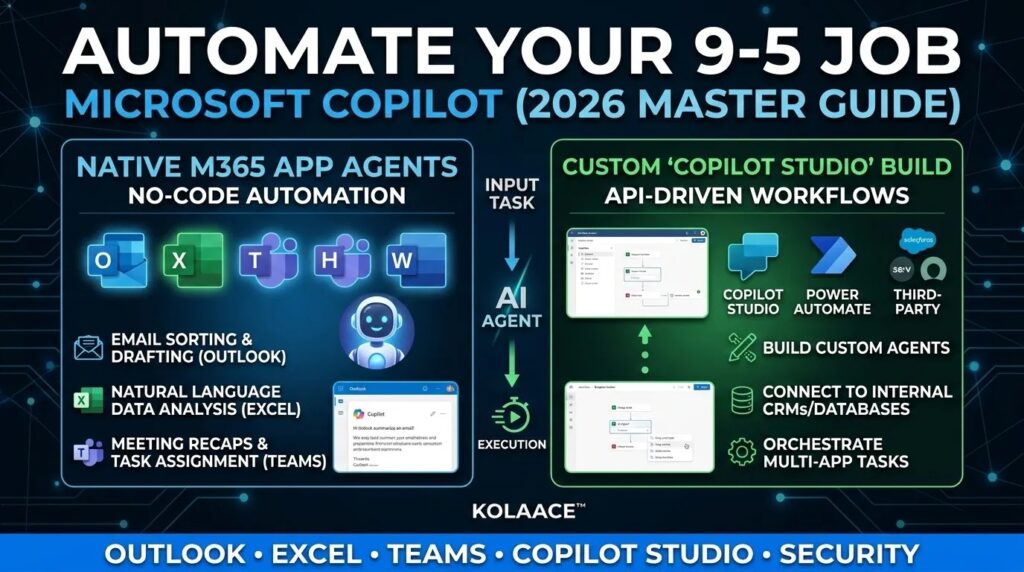
Copilot inside Microsoft 365 is no longer a simple AI chatbot. It works as an embedded assistant across apps and understands your context.
- Reads emails and identifies priorities
- Analyzes Excel data using natural language
- Summarizes meetings and extracts action points
- Automates repetitive workflows across tools
The key difference is context awareness. It does not just respond to commands, it understands your work environment.
Time Savings Breakdown in Real Workflows
| Task | Manual Time | With Copilot |
|---|---|---|
| Inbox Management | 60 to 90 minutes | 5 to 10 minutes |
| Meeting Notes | 30 to 45 minutes | Instant summary |
| Excel Reporting | 1 to 2 hours | 10 to 20 minutes |
These numbers are based on real usage patterns. The biggest impact comes from consistency. Saving 60 minutes daily means saving nearly 20 hours per month.
Step by Step Guide to Automate Your 9 to 5 Job
Step 1: Start with Email Automation in Outlook
Email is usually the biggest time drain. Start here for quick wins.
- Use prompts like, summarize all important emails from today
- Ask Copilot to draft replies based on previous tone
- Automatically categorize emails into priority folders
In practice, this alone can reduce email time by more than half.
Step 2: Automate Data Work in Excel
Excel is where most professionals lose time due to manual formulas and analysis.
- Ask Copilot to clean messy data sets
- Generate reports using natural language commands
- Create charts and summaries automatically
Example prompt: analyze this dataset and highlight top performing regions.
This removes the need for complex formulas and reduces errors.
Step 3: Use Teams for Meeting Automation
Meetings often create hidden work in the form of notes and follow ups.
- Generate instant meeting summaries
- Extract action items automatically
- Assign tasks to team members without manual input
This ensures nothing is missed and reduces post meeting workload.
Step 4: Connect Workflows Across Apps
Real automation happens when tools are connected.
- Link Outlook with Teams for automatic task creation
- Sync Excel reports with email updates
- Use Copilot Studio or automation tools for cross app workflows
This step transforms Copilot from a helper into a full workflow engine.
Real World Use Cases
IT Professionals
Automate ticket summaries, status updates, and documentation.
Managers
Track team performance, generate reports, and manage communication.
Small Business Owners
Handle customer emails, invoices, and data tracking without hiring extra staff.
Pros and Cons
Advantages
- Massive time savings on repetitive tasks
- Improved accuracy and reduced human error
- Better focus on strategic work
- Faster decision making
Limitations
- Requires initial setup and learning
- Depends on data quality
- Needs review before critical actions
Automation is powerful, but it should always be supervised.
Who Should Use Copilot Automation
- Professionals handling large volumes of emails and data
- Managers coordinating multiple teams
- Freelancers balancing multiple clients
Who Should Avoid It
- Users who prefer manual workflows
- Roles with minimal digital work
Best Practices for Maximum Productivity
- Start with one workflow, then expand gradually
- Use clear and specific prompts
- Always review outputs before final actions
- Keep your data clean and structured
Conclusion
Microsoft Copilot is changing how professionals work in 2026. It allows you to shift from manual execution to intelligent supervision. Instead of doing every task yourself, you guide the system and focus on higher value work.
The goal is not to work less, but to work better. When used correctly, Copilot becomes one of the most valuable tools in your daily workflow.
Frequently Asked Questions